

Come Hover Here is a free Google Chrome extension that lets you hover your mouse cursor over Chinese text on any website to immediately see Pinyin and English translations from Google Translate.
Download it here or download from the Chrome Extensions Store.
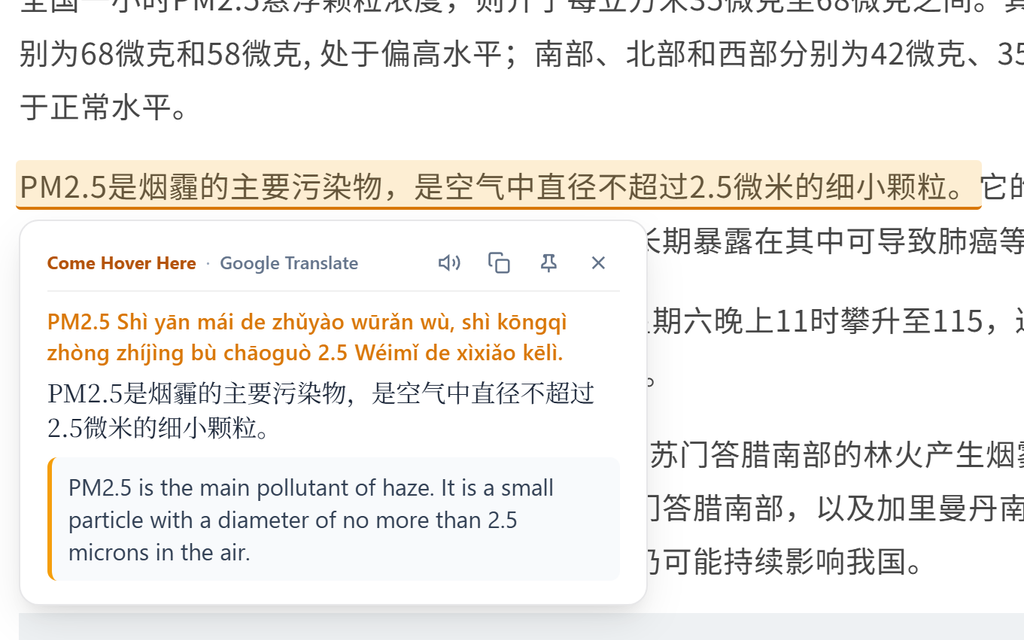
1. What Does This Extension Do?
When you read Chinese online, looking up words in a dictionary can take a lot of time.
Come Hover Here makes it effortless:
- You simply hover your mouse over any sentence.
- The sentence lights up in yellow.
- A clean popup card appears immediately right next to the sentence.
- It translates the whole sentence (not just one word), so idioms and grammar make natural sense.
2. What Is Inside the Popup Card?
Every time you hover over a sentence, the card shows:
- Pinyin with Tone Marks
- Shows you how to pronounce each character with proper Chinese tones (for example, Nǐ hǎo shìjiè).
- Original Chinese Sentence
- The exact sentence you are hovering over.
- Google Translate English Translation
- The full sentence translated into natural English.
- Speaker Button (🔊 Listen)
- Click the speaker icon to hear the sentence spoken out loud in a natural Mandarin Chinese voice.
- Copy Button (📋 Copy)
- Copies the Chinese sentence, Pinyin, and English translation to your clipboard with one click.
- Pin Button (📌 Pin)
- Freezes the card on your screen so it stays open even when you move your mouse away. Great for taking notes or studying! Press the Esc key or click the pin again to close it.
- Bookmark Button (🔖 Save)
- Saves the sentence to your review list so you can practice it anytime.
3. How to Install It in Google Chrome (4 Steps)
You do not need an account or the Chrome Web Store. You can install it in under 60 seconds:
- Step 1: Download & Unzip
- Click Download Extension (.ZIP) to download come-hover-here-extension.zip.
- Unzip (extract) the archive into a folder on your computer.
- Step 2: Open Extensions Page in Chrome
- Open Google Chrome, type chrome://extensions/ into the address bar, and press Enter.
- Step 3: Turn On Developer Mode
- In the top-right corner of the page, switch the Developer mode toggle to ON.
- Step 4: Load the Unpacked Folder
- Click the Load unpacked button in the top-left corner.
- Select the folder you unzipped in Step 1 (the one containing manifest.json).
- That’s it! The extension is now active.
4. How to Use It
- Open any website with Chinese text (like Wikipedia in Chinese, Baidu, Weibo, Zhihu, or news sites).
- Move your mouse cursor over any Chinese sentence.
- The popup card appears instantly.
- Read the Pinyin, check the translation, or click the speaker to listen!
5. Settings You Can Change
Click the Come Hover Here icon in your Chrome toolbar to customize how it works:
- Enable / Disable: Turn the translator on or off with one switch.
- Trigger Mode:
- Instant Hover: Pops up as soon as your mouse touches Chinese text.
- Hold Alt + Hover: Only pops up when you hold down the Alt key (prevents accidental popups while reading).
- Hold Shift + Hover: Only pops up when holding the Shift key.
- Hold Ctrl / Cmd + Hover: Only pops up when holding Ctrl (Windows) or Command (Mac).
- Hover Delay (100ms – 800ms):
- Choose how fast the card appears (default is 250ms, balanced and smooth).
- Pinyin Tone Display:
- Choose between Tone Marks (Nǐ hǎo) or Tone Numbers (Ni3 hao3).
- Target Language:
- English, Spanish, French, German, Japanese, Korean, or Russian.
- Auto Pronounce:
- Automatically speaks the sentence aloud every time you hover over it.
6. Frequently Asked Questions (FAQ)
- Q: Does this cost any money?
- No, it is 100% free and does not require an API key or credit card.
- Q: Does it work on any website?
- Yes, it works on any webpage that has readable text in Google Chrome.
- Q: How do I close the popup quickly?
- Move your mouse away from the text, or press the Esc key on your keyboard.
- Q: Does it slow down my browser?
- No, it is very fast and uses an in-memory cache so re-hovering over sentences takes 0 milliseconds.